
Header Layouts
Pegasus has five header layouts. Pick one in Pegasus Options → Header Options → Header Select. Each suits a different logo size and menu complexity.
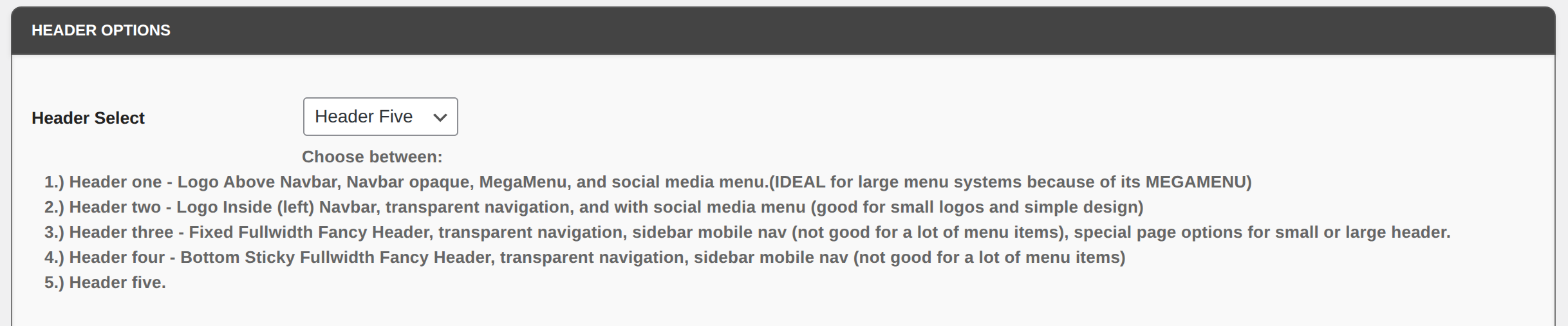
| Header | Looks like | Best for |
|---|---|---|
| Header One | Logo above the navbar, opaque (solid) navbar, MegaMenu, and social media menu | Large menu systems, because of its MegaMenu |
| Header Two | Logo inside (left of) the navbar, transparent navigation, social media menu | Small logos and a simple design |
| Header Three | Fixed full-width “fancy” header, transparent navigation, sidebar mobile nav, with special page options for a small or large header | Sites with fewer menu items |
| Header Four | Bottom-sticky full-width “fancy” header, transparent navigation, sidebar mobile nav | Sites with fewer menu items |
| Header Five | Fixed left sidebar navigation (the layout pegasustheme.com uses) | Sidebar-style sites |
Header Options (all layouts)
Section titled “Header Options (all layouts)”| Setting | What it does |
|---|---|
| Mobile Hamburger Menu Color / Border Color | The mobile menu (☰) button |
| Header Bkg color | Background of the entire header |
| Search Box enable | Shows a search box in the header |
| Fixed Navigation | Keeps the header fixed at the top |
| Sticky Navigation | Sticky header. Only works with Header Two. |
| Social Icons enable | Shows social icons in the header |
| More Menu | Adds extra menu items to the navigation (assign another menu under Appearance → Menus) |
| More Menu Widget Areas | None to Four. This also sets how many Mega Menu Columns you get |
| Mega Menu: Navs or Widgets | Fill the MegaMenu columns with Navigation Menus or Widgets |
Header One and Two Options
Section titled “Header One and Two Options”| Setting | What it does |
|---|---|
| Center Logo | Centers the logo (Header One only) |
| Justify Nav Menu | Centers the navigation links |
| Right Align Nav Items | Puts the links on the right on desktop |
| Header Outer Container | Wraps the header in a container |
| Enable Nav Inner Fullwidth Container | Full-width container inside the header (overrides the global setting) |
| Nav CTA Button Text / Link | A call-to-action button in the menu. Leave the text blank to hide it |
| Nav CTA Button Classes | Extra CSS classes for the button |
| Nav CTA Button is External Link | Opens in a new tab and adds an external-link icon |
Header Three and Four Options
Section titled “Header Three and Four Options”| Setting | What it does |
|---|---|
| Right align nav menu items | Floats the links to the right |
| Disable fixed header | These headers are fixed by default; check this to let it scroll away |
| Mobile Background color | Background of the sidebar menu on mobile |
| Scroll Bkg color | Header background after the visitor scrolls down 200 pixels |
| Scroll Nav Item Color | Menu link color after scrolling |
Navigation Options (menu colors)
Section titled “Navigation Options (menu colors)”| Setting | What it does |
|---|---|
| Bootstrap Nav Color Scheme | None, Navbar Light, or Navbar Dark |
| Bootstrap Nav Utility Class | None, Background Light, Background Dark, Background Faded, or Background Primary |
| Nav Background color | Navbar background (set the Utility Class above to None first) |
| Nav Item color / Hover color | Menu link colors |
| Nav Item Background color / Hover color | Menu link backgrounds |
| Sub-Menu Item color / Hover color for Desktop | Dropdown link colors |
| Sub-Menu Background color / Hover color | Dropdown backgrounds |
| Active/Current Menu Item color | The link for the page you’re on |
| Mobile Submenu Always Visible | Shows all submenus on phones without tapping to expand |
After switching headers
Section titled “After switching headers”- Make sure your menu is assigned to Primary Menu, since every header layout reads from it. See Menus and Social Icons.
- With fixed or transparent headers, some pages may need extra top spacing or a hero area. Use the per-page Additional Header setting. See Page Options and Headers.
- Check the site on your phone too. Each header behaves differently on mobile.